

How to install your eSIM
Choose your plan, receive your QR code by email, and get connected in a few simple steps.
Before you install
- Make sure your phone is unlocked and supports eSIM.
- Connect to stable Wi-Fi and keep your QR code private.
- Check your plan details to see when its validity period starts.
Step 1
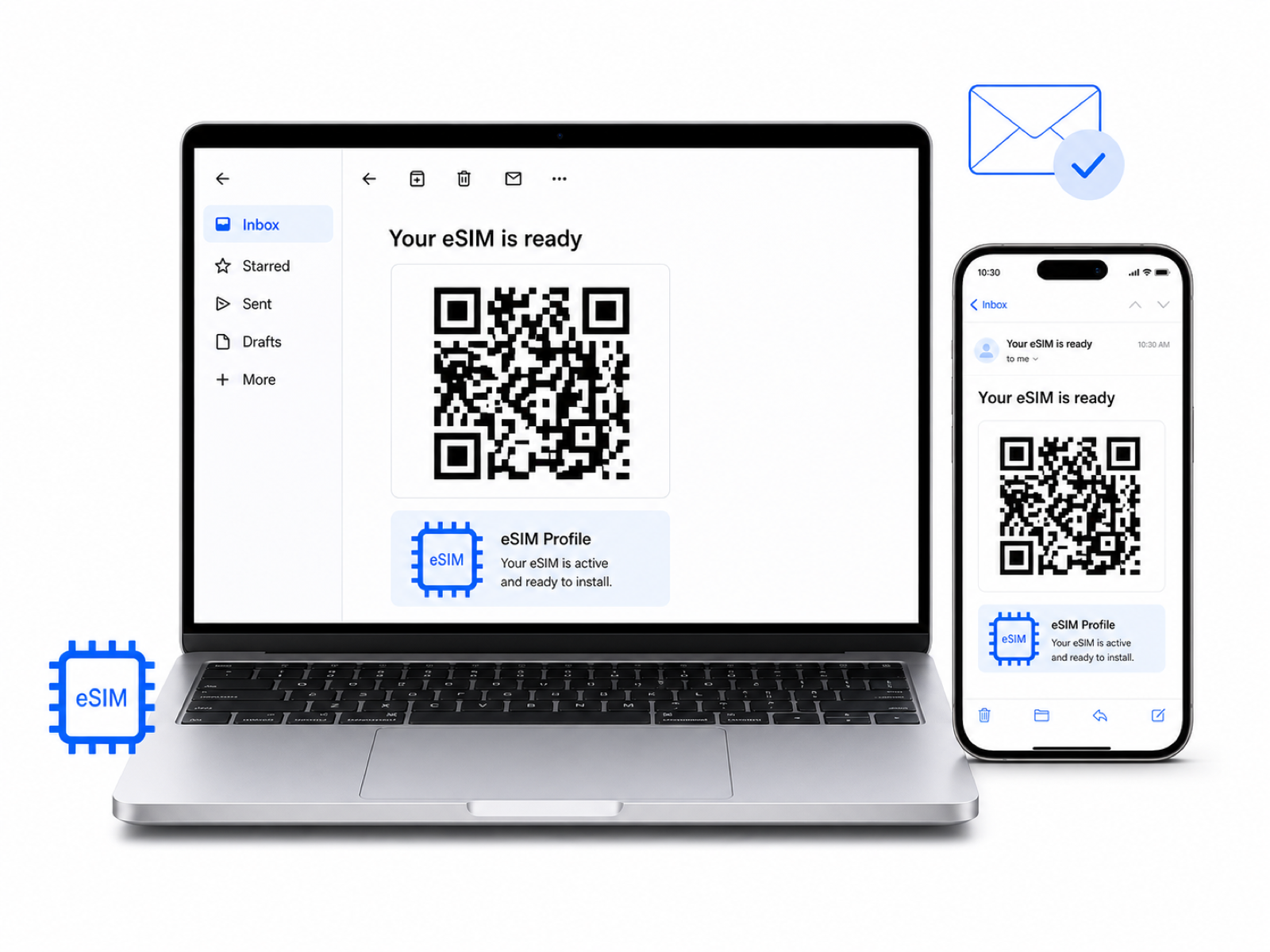
Receive your eSIM
After checkout, we will send your eSIM details and QR code to the email address used for your order.
Step 2
Install your eSIM
Choose either method below. You do not need to complete both methods.
Option A
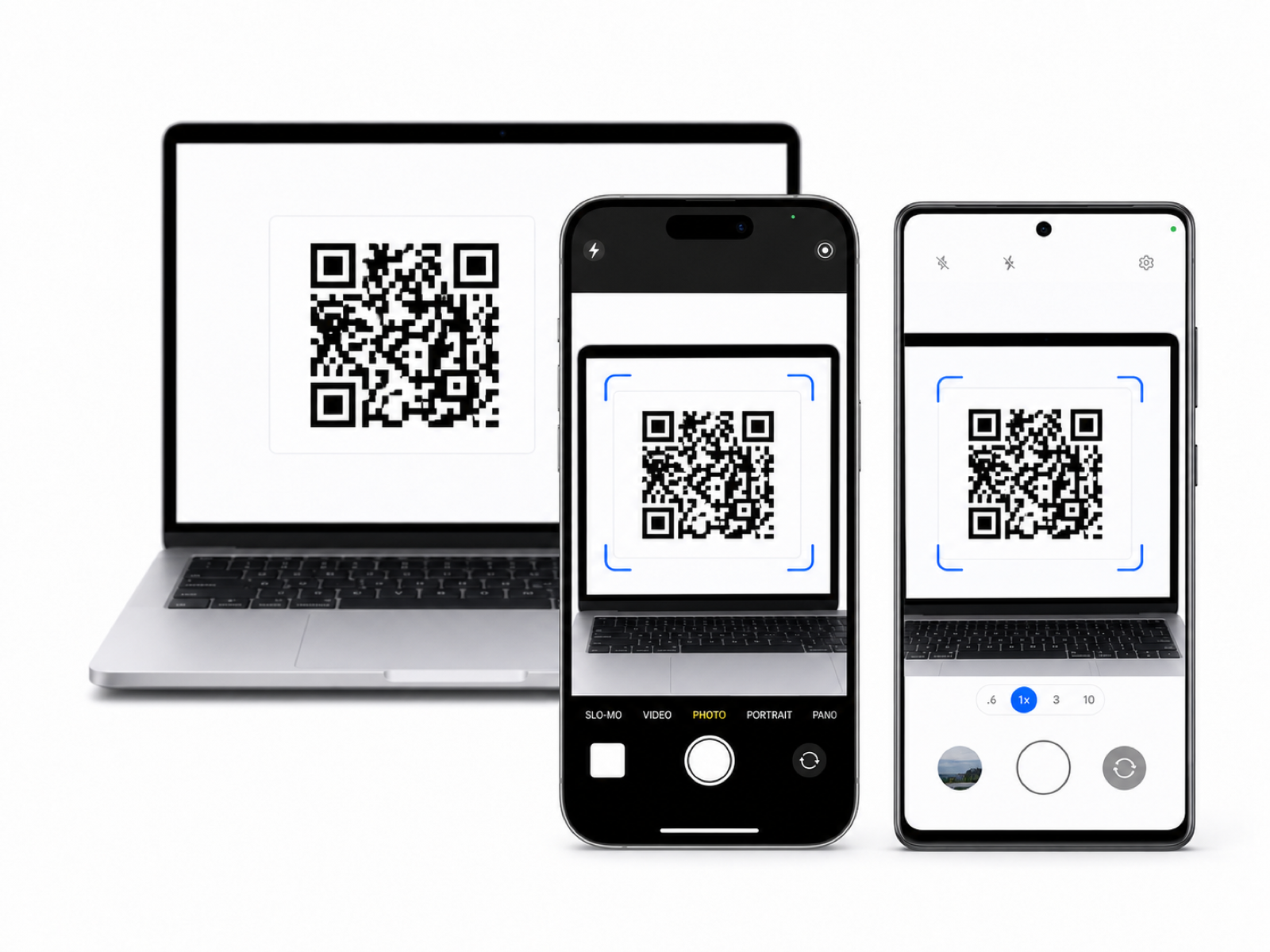
Scan the QR code from another screen
Open the email on a computer, tablet, or another phone. On the phone where you want to install the eSIM, open the eSIM setup screen and scan the QR code.
Option B
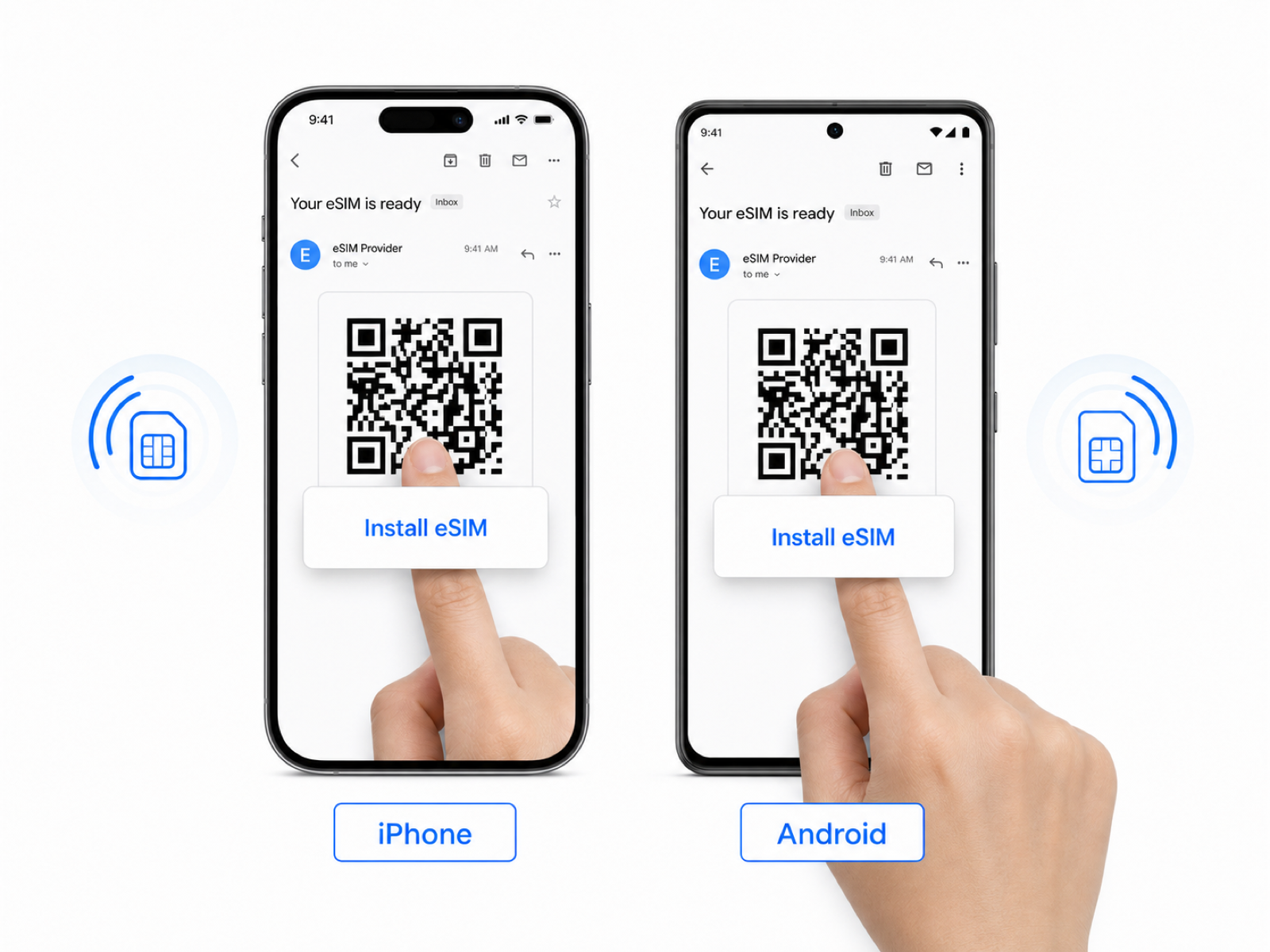
Install from the same phone
Open the email on the phone you want to use. Press and hold the QR code, select Add eSIM or Install eSIM, and follow the on-screen instructions.
Step 3
Activate at your destination
When you arrive, turn on the BiteSIM line, use it for mobile data, and enable Data Roaming for BiteSIM. Follow the instructions for your phone below.
For iPhone
Activate your eSIM on iPhone
- Open Settings > Cellular or Mobile Service.
- Select your BiteSIM eSIM and turn on Turn On This Line.
- Turn on Data Roaming for the BiteSIM line.
- Go back to Cellular Data and select BiteSIM.
- Turn off Allow Cellular Data Switching to prevent your primary SIM from using data.
- Keep Network Selection on Automatic and wait a few minutes.
For Android
Activate your eSIM on Android
- Open Settings > Connections, Network & Internet, or SIM Manager.
- Select your BiteSIM eSIM and turn it on.
- Choose BiteSIM as the preferred SIM for Mobile Data.
- Open the BiteSIM settings and turn on Data Roaming.
- Turn off mobile data or roaming for your primary SIM to avoid extra charges.
- Keep network selection on Automatic and wait a few minutes.
Menu names may vary by phone manufacturer and Android version.
Not connected yet?
- Turn Airplane Mode on for 30 seconds, then turn it off.
- Restart your phone.
- Confirm BiteSIM is selected for mobile data and Data Roaming is on.
- Disable any active VPN.
- Enter the APN shown in your eSIM email or plan details, if required.
Important
Do not delete your eSIM after installation. It may not be reusable or transferable to another phone.
To avoid roaming charges, turn off Data Roaming for your primary SIM and disable Cellular Data Switching.
Activation rules vary by plan. Some plans start when they first connect to a supported network, while others start at installation. Always follow the instructions shown on the product page and in your eSIM email.